Copy all databases and logins to a new server using: Copy-DbaDatabase and Copy-DbaLogin

I had to setup a new server and I needed to copy all of the databases from the old server to it. This can take some time if you have many databases. Using Copy-DbaDatabase from dbatools makes this a simple process.

Read more: Copy all databases and logins to a new server using: Copy-DbaDatabase and Copy-DbaLogin

If you have not seen any of my other posts about dbatools, please follow this link to see how to set it up in your environment and to see the benefits of what it can do for you. https://jimsalasek.com/2021/10/05/dbatools-io-a-dba-timesaver-luxury/

Using just one command, you can copy all of the databases from one server to another. It can use different methods, but I am going to use the USELASTBACKUP method. From the documentation: “This uses the last full, diff and logs instead of performing backups. Note that the backups must exist in a location accessible by all destination servers, such a network share.”

Here is the command I used to complete this task. I had to supply my source and destination server names. Since these servers were on a different network, I had to specify credentials. If I was using Windows Authentication, I would not have needed to supply credentials. The command below pops up a box for you to type in your password.

Copy-DbaDatabase -Source SERVERNAME\INSTANCE -Destination SERVERNAME\INSTANCE -BackupRestore -UseLastBackup -Force -SourceSqlCredential sa -DestinationSqlCredential sa -AllDatabases

When it is all complete, your screen should look like below with all showing a Successful status.
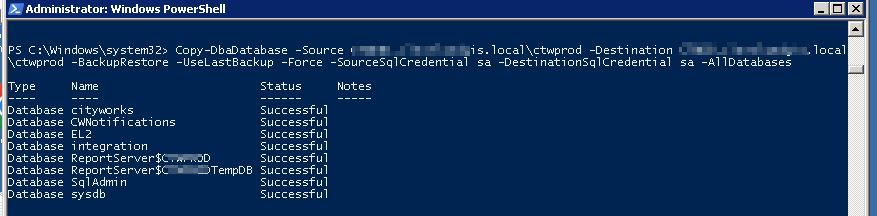
Looking in SSMS, it shows all of the databases being on the new server.

Now another very useful command from dbatools, is copying over all of the usernames/passwords from the old server to the new server. This is also a one line command. Using Copy-DbaLogin, you do not need to worry about orphan logins which can happen when restoring databases onto a new server. From the documentation: “SQL Server 2005 & newer: Migrates logins with SIDs, passwords, defaultdb, server roles & securables, database permissions & securables, login attributes (enforce password policy, expiration, etc.)”

Copy-DbaLogin -Source SERVERNAME\INSTANCE -Destination SERVERNAME\INSTANCE -SourceSqlCredential sa -DestinationSqlCredential sa

This will skip any user that already exists on the server.

Using dbatools and the commands Copy-DbaDatabase and Copy_DbaLogin migrating to new servers is a breeze. To read more about these commands please follow the links below. https://docs.dbatools.io/Copy-DbaDatabase.html
https://docs.dbatools.io/Copy-DbaLogin.html

How to hide Report Service jobs in SSMS

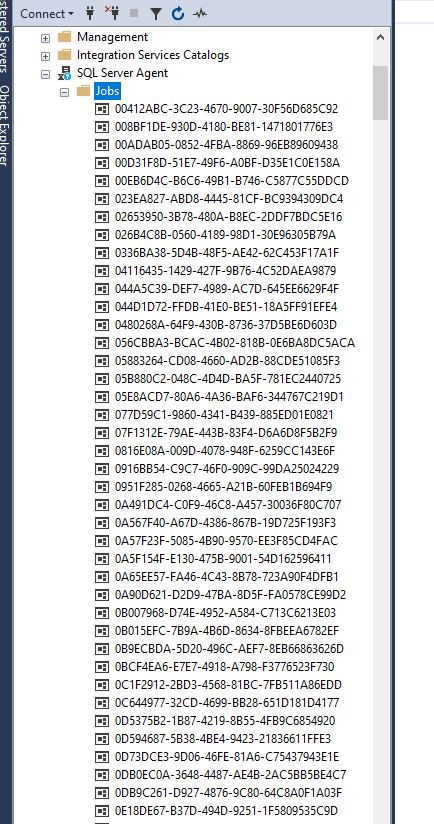
When you create subscriptions for your SSRS reports, it creates jobs in the SQL Server Agent with GUID’s when viewed in SSMS. This can make finding proper jobs more difficult if you have to scroll through hundreds or thousands of SSRS reports.

Read more: How to hide Report Service jobs in SSMS

On my server I have over 500 report subscriptions along with other database jobs. How do I hide all of these? Keep reading to find out!

We will need to modify a system supplied stored procedure. You do this at your own risk. I do not accept responsibility if there are problems on your system after making this change. That said, I have been doing this for over 10 years without any problems.

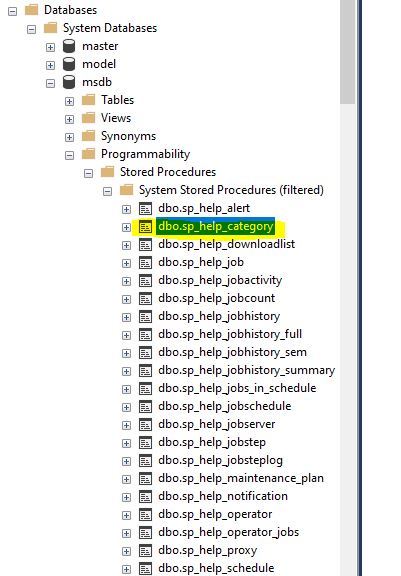
Open up the MSDB database and go to Programmability and open up the dbo.sp_help_category stored procedure. Right click and choose modify.

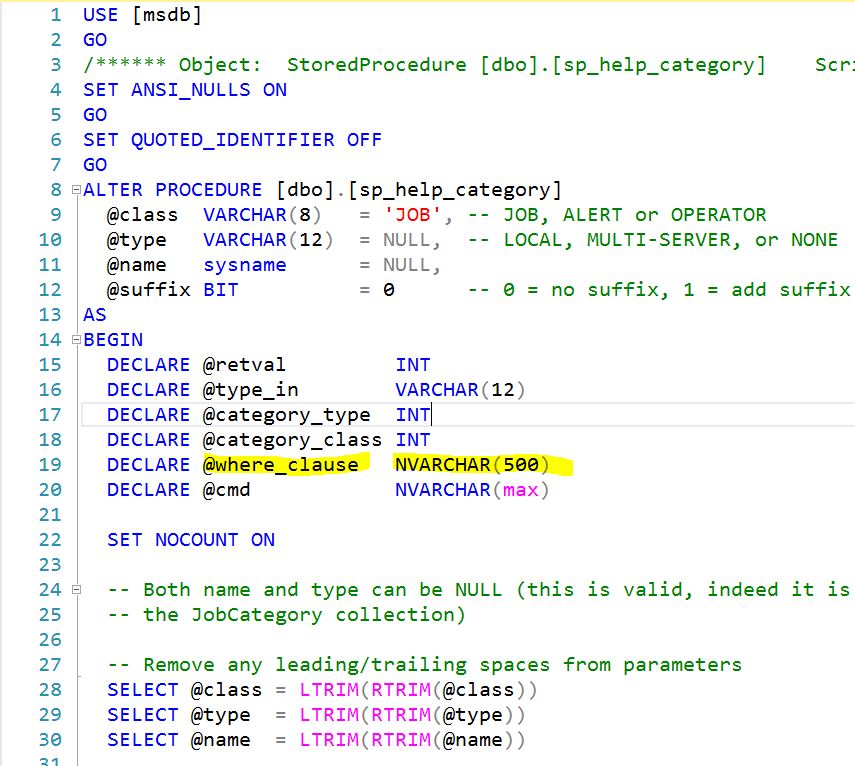
We need to make two changes to this procedure. First, we need to find the @where_clause variable. Mine is on line #19 below.

We need to change the 500 to MAX as seen below.

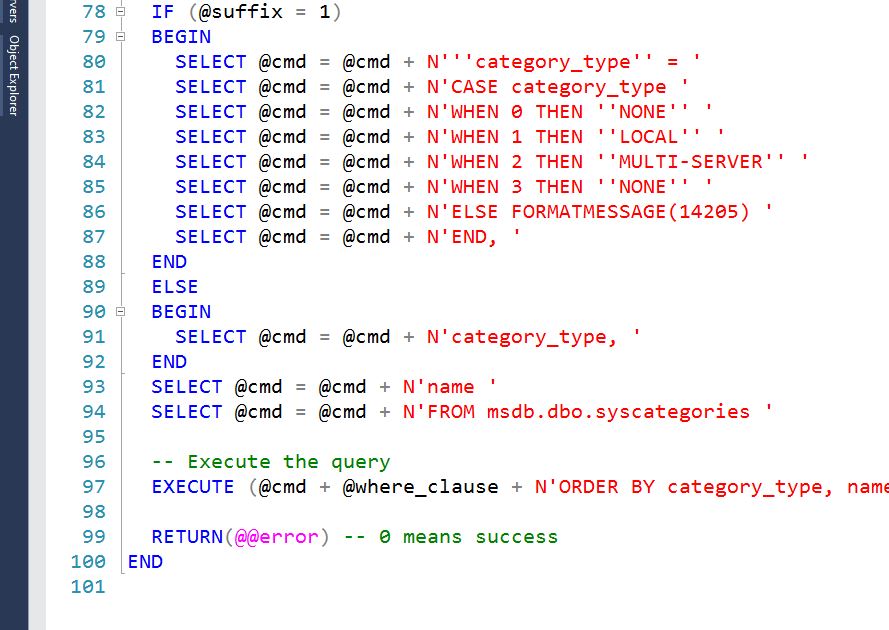
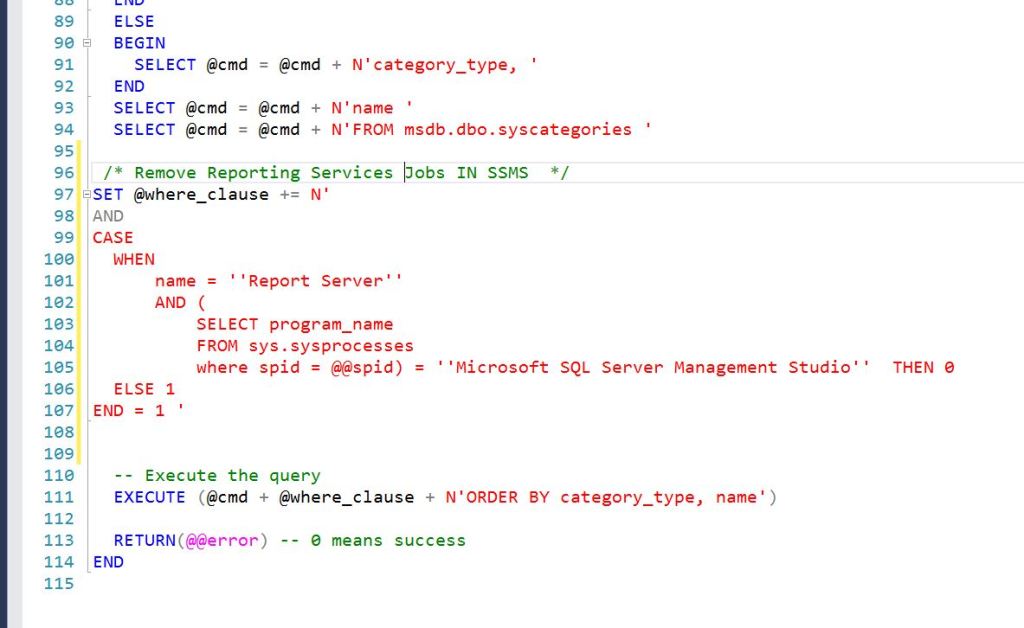
Now we need to go to the bottom of the stored procedure and look for the final execute. On mine, it was line #97.

We will need to put this T-SQL code in front of the final execute and then execute the stored procedure to save it to the database.

-- Hide Reporting Services Jobs IN SSMS
SET @where_clause += N'
AND
CASE
WHEN
name = ''Report Server''
AND (
SELECT program_name
FROM sys.sysprocesses
where spid = @@spid) = ''Microsoft SQL Server Management Studio'' THEN 0
ELSE 1
END = 1 '

Before:

After:

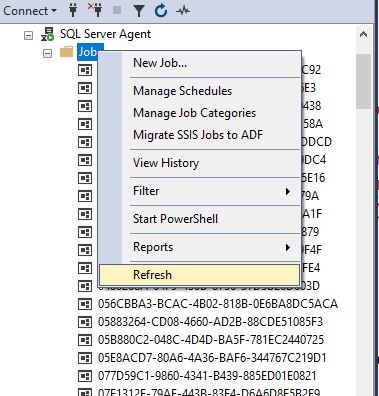
Now we can refresh the jobs.

After refreshing, all of the GUID jobs are no longer displaying. If you are still seeing the GUID jobs, make sure you executed the stored procedure to save it to the database.

One caveat: sometimes after patching, the GUID SSRS reports will reappear. Just bookmark this page and follow these steps again to fix.

To read more about sp_help_category, follow this link: https://learn.microsoft.com/en-us/sql/relational-databases/system-stored-procedures/sp-help-category-transact-sql?view=sql-server-ver16

Powershell: ReportingServicesTools. Download ALL RDL files from a SSRS server.

Can you download all of the RDL files from a SSRS server? You sure can, and it is easy using PowerShell and the ReportingServicesTools module.

Continue reading Powershell: ReportingServicesTools. Download ALL RDL files from a SSRS server.

TSQL – Easy way to find rows that do not exist in another table using the EXCEPT operator

There are times you have two tables that look the same and seem to have the same rows in each. Using the EXCEPT operator, you can find any rows that do not exist in either table.

Continue reading TSQL – Easy way to find rows that do not exist in another table using the EXCEPT operator

Powershell: ReportingServicesTools. Download all RDL files from a SSRS folder.

I had a case where the original Visual Studio solution was missing and we needed to make changes to some reports. The reports were still up on the Reporting server and by using ReportingServicesTools, I was able to download all of them at one time instead of clicking each one and downloading manually.

Continue reading Powershell: ReportingServicesTools. Download all RDL files from a SSRS folder.

SSIS error: 0xC0048021SSIS

After deploying my SSIS ETL project, I tried to run it and got this error: Flat File Destination failed validation and returned error code 0xC0048021. See below how to fix this.

Continue reading SSIS error: 0xC0048021SSIS