
Copy SQL Server tables between servers easily with dbatools.

Often you need to copy tables between Sql Server database servers. In your environment, you cannot use or setup linked servers. How do you accomplish this without restoring the entire database on the destination server? Read along to see an easy way.

Read more: Copy SQL Server tables between servers easily with dbatools.

A scenario you will often find as a DBA, is to copy over table data to a different environment. The users do not want the entire database, but just the one table.

Using dbatools, this is very simple. To read more about setting up dbatools, please refer to my earlier blog posts.

Here is my current TEST database. It does not have any tables at this time.

After having dbatools installed, this simple command will copy a table from one database server to another.

Copy-DbaDbTableData -sqlinstance SOURCEINSTANCE -database warehouse -table dbo.aging -destination DESTINATIONINSTANCE -destinationdatabase Test -autocreate

The parameters you will need to change are easy enough:

SOURCEINSTANCE, TABLE, DESTINATIONINSTANCE, and DESTINATIONDATABASE. If you add -Autocreate, it will create the table automatically for you.

(why is this screenshot so small? You will need to trust me)

This is it running and showing progress.

This is the results of the command finishing. It shows (really it does), the table name, servers, number of rows transferred and time it took to complete.

If we look in the test database, you can see that the table has been copied over.

There are always multiple ways to accomplish tasks in Sql Server. Using dbatools is a huge time saver.
Copy all databases and logins to a new server using: Copy-DbaDatabase and Copy-DbaLogin

I had to setup a new server and I needed to copy all of the databases from the old server to it. This can take some time if you have many databases. Using Copy-DbaDatabase from dbatools makes this a simple process.

Read more: Copy all databases and logins to a new server using: Copy-DbaDatabase and Copy-DbaLogin

If you have not seen any of my other posts about dbatools, please follow this link to see how to set it up in your environment and to see the benefits of what it can do for you. https://jimsalasek.com/2021/10/05/dbatools-io-a-dba-timesaver-luxury/

Using just one command, you can copy all of the databases from one server to another. It can use different methods, but I am going to use the USELASTBACKUP method. From the documentation: “This uses the last full, diff and logs instead of performing backups. Note that the backups must exist in a location accessible by all destination servers, such a network share.”

Here is the command I used to complete this task. I had to supply my source and destination server names. Since these servers were on a different network, I had to specify credentials. If I was using Windows Authentication, I would not have needed to supply credentials. The command below pops up a box for you to type in your password.

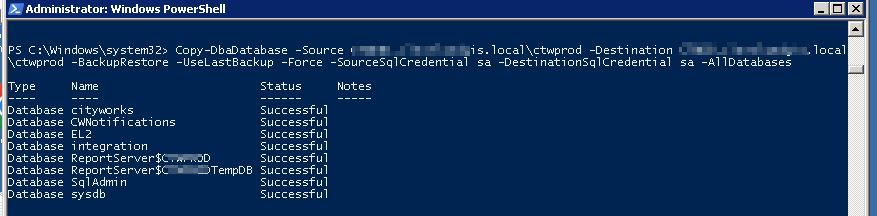
Copy-DbaDatabase -Source SERVERNAME\INSTANCE -Destination SERVERNAME\INSTANCE -BackupRestore -UseLastBackup -Force -SourceSqlCredential sa -DestinationSqlCredential sa -AllDatabases

When it is all complete, your screen should look like below with all showing a Successful status.

Looking in SSMS, it shows all of the databases being on the new server.

Now another very useful command from dbatools, is copying over all of the usernames/passwords from the old server to the new server. This is also a one line command. Using Copy-DbaLogin, you do not need to worry about orphan logins which can happen when restoring databases onto a new server. From the documentation: “SQL Server 2005 & newer: Migrates logins with SIDs, passwords, defaultdb, server roles & securables, database permissions & securables, login attributes (enforce password policy, expiration, etc.)”

Copy-DbaLogin -Source SERVERNAME\INSTANCE -Destination SERVERNAME\INSTANCE -SourceSqlCredential sa -DestinationSqlCredential sa

This will skip any user that already exists on the server.

Using dbatools and the commands Copy-DbaDatabase and Copy_DbaLogin migrating to new servers is a breeze. To read more about these commands please follow the links below. https://docs.dbatools.io/Copy-DbaDatabase.html

https://docs.dbatools.io/Copy-DbaLogin.html

Using dbatools to find orphaned files

A lot of times you will move a database file from one drive to another and then forget to delete the original. This takes up precious space and could be causing you low disk space. Using dbatools, you can easily find any orphaned files for 1 database or all of the servers in your estate.

Continue reading Using dbatools to find orphaned files

Using dbatools to import csv data to your database: Import-DbaCsv

Often you will get a “csv” file from someone to load into your Sql Server database. There are many ways to do this including: SSIS, using the import tool from SSMS, etc. Now there is another way using Import-DbaCsv from dbatools.

Continue reading Using dbatools to import csv data to your database: Import-DbaCsv

Using dbatools to check server disk space: Get-DbaDiskSpace

If you want to check how much free space you have on your Sql Server, you can just Remote Desktop in and check right? Yes, but I will show you an easier way using dbatools and a way to check multiple servers at once!

Continue reading Using dbatools to check server disk space: Get-DbaDiskSpace

DBATOOLS.IO….A DBA timesaver/luxury

The next few posts I am going to write about are about the awesome tool called DBATOOLS. It is an open source tool, created by Chrissy LeMaire and the SQL Server community and can be found here: https://dbatools.io/

POWERSHELL? Do not be afraid, I will show you how easy it is to install and some useful commands I use daily that are truly timesavers across my SQL Server universe.

Continue reading DBATOOLS.IO….A DBA timesaver/luxury