Terminate SSIS Jobs: A Step-by-Step Guide

There are many reasons for terminating a long running SSIS Package. Sometimes someone accidentally kicks-off a monthly job instead of a daily job, or you just clicked the wrong item, either way SQL Server performance is affected. Whatever the reasons, you need to stop the job.

Read more: Terminate SSIS Jobs: A Step-by-Step Guide

The cleanest way I have found to stop a SSIS package is by first running the following query to identify the processes that you want to stop.

You can either use End_Time is null or Status = 2 in the where clause.

select execution_id,folder_name,project_name,status,start_time,end_time
from catalog.executions where end_time is null

This shows all of the SSIS jobs that SQL Serve thinks is still running. Some of these above are from 3-4 years ago, so I know they are not active.

Status of 2, indicates that SSIS still thinks that the process is running.

The other possible status results are (from the docs):
“created (1), running (2), canceled (3), failed (4), pending (5), ended unexpectedly (6),
succeeded (7), stopping (8), and completed (9).”

Now using the execution_id from the query above, we now need to use the catalog.stop_operation stored procedure to cancel the job:


exec catalog.stop_operation @operation_id=648469

After re-running the query, we can see that the job is no longer showing up as a running task.

Below I am stopping all of the jobs.

Rerunning the query now shows that no jobs are running.

For unknown reasons, sometimes the SSISDB database thinks old jobs are still running even though you do not see anything running. Now you have an easy way to stop/delete them.

For further reading, feel free to read these selections about: catalog.stop_operation and catalog.executions.


https://learn.microsoft.com/en-us/sql/integration-services/system-views/catalog-executions-ssisdb-database?view=sql-server-ver16

https://learn.microsoft.com/en-us/sql/integration-services/system-stored-procedures/catalog-stop-operation-ssisdb-database?view=sql-server-ver16

Copy SQL Server tables between servers easily with dbatools.

Often you need to copy tables between Sql Server database servers. In your environment, you cannot use or setup linked servers. How do you accomplish this without restoring the entire database on the destination server? Read along to see an easy way.

Read more: Copy SQL Server tables between servers easily with dbatools.

A scenario you will often find as a DBA, is to copy over table data to a different environment. The users do not want the entire database, but just the one table.

Using dbatools, this is very simple. To read more about setting up dbatools, please refer to my earlier blog posts.

Here is my current TEST database. It does not have any tables at this time.

After having dbatools installed, this simple command will copy a table from one database server to another.

Copy-DbaDbTableData -sqlinstance SOURCEINSTANCE -database warehouse -table dbo.aging -destination DESTINATIONINSTANCE -destinationdatabase Test -autocreate

The parameters you will need to change are easy enough:

SOURCEINSTANCE, TABLE, DESTINATIONINSTANCE, and DESTINATIONDATABASE. If you add -Autocreate, it will create the table automatically for you.

(why is this screenshot so small? You will need to trust me)

This is it running and showing progress.

This is the results of the command finishing. It shows (really it does), the table name, servers, number of rows transferred and time it took to complete.

If we look in the test database, you can see that the table has been copied over.

There are always multiple ways to accomplish tasks in Sql Server. Using dbatools is a huge time saver.

Master Filtering in SSMS: Quick Database Object Access

Are you tired of scrolling through all the tables, stored procedures and views to find the correct one? Sometimes you need to modify a stored procedure, and it takes a couple of minutes just to find it in the tree. Is there a way I can filter objects in SSMS? Yes! Read on to see how to do it.

Read more: Master Filtering in SSMS: Quick Database Object Access

SQL Server Management Studio (SSMS) will let us filter objects like tables, stored procedures and views. It really helps to get to objects quickly in case you
have a lot of objects in your database.

Here is how you can filter the objects. I am going to demonstrate on the stored procedures, but this works for tables and views also.

Go to the appropriate database and drill down to stored procedures and then Right click. Choose Filter->Filter Settings.

In this example I do not want to see any procedures that are in the ORACLE schema. I change the Operator to Does Not Contain and put the schema I do not want to show up.

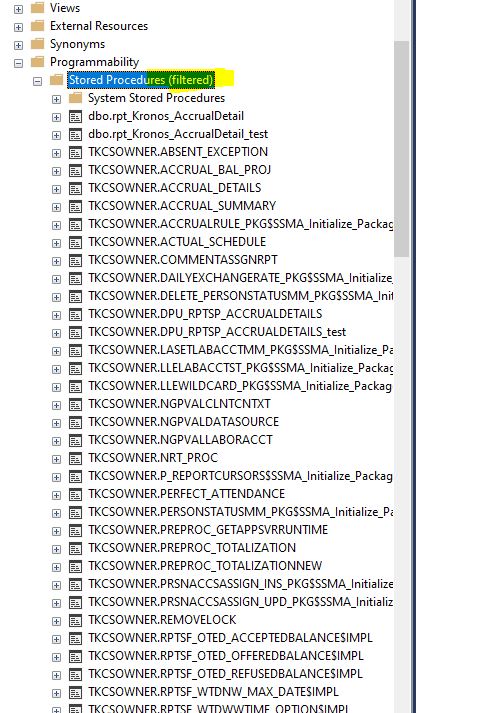
After pressing OK, the browser it does not show the Oracle schema anymore. You can also see that the Stored Procedures are filtered by the word Filtered showing up next to them.

To remove the filter, just right click Stored Procedures select Filter -> Remove Filter.

Now all stored procedures show up in the listing again. You can see that the Filtered keyword is not showing up next to the Stored Procedures listing.

Now we are going to filter on certain tables. Right click on Tables and choose Filter Settings. This time we will put a value for Name “contains” and we will put in ACCR so we only see tables related to accruals.

Now we only see tables that contain the letters ACCR. Also notice that the Tables option shows they are Filtered.

If you are a programmer and only responsible for certain tables or procedures, using filters can really clean up your work environment.

How to find all jobs that call a stored procedure.

I need to find all SQL Agent jobs that call a certain stored procedure. You could open every Agent job and inspect each step or you could do it the smart way and use a query! You can also use this method to find other items (tables, views, functions, etc.)

Read more: How to find all jobs that call a stored procedure.

I need to find any job that is using a stored procedure. Using this query below, I just need to modify the WHERE clause for what I am searching for. Also make sure you change the database to MSDB.

use msdb
GO
SELECT Job.name AS JobName,
Job.enabled AS ActiveStatus,
JobStep.step_name AS JobStepName,
JobStep.command AS JobCommand
FROM sysjobs Job
INNER JOIN sysjobsteps JobStep
ON Job.job_id = JobStep.job_id
WHERE JobStep.command LIKE '%spBHTamper%'

The results show two different Jobs that have spBHTamper in it.

I open up the Tamper Export job, and I see that indeed the spBHTTamperExport is being called. Success!

To read more about the MSDB database, please visit this link: https://learn.microsoft.com/en-us/sql/relational-databases/databases/msdb-database?view=sql-server-ver16

Error Msg 2760, Level 16 When trying to create a table in a schema

I was trying to create a table in a schema, but received the following error message: Msg 2760, Level 16, State 1, Line 1

Read on to find out how I solved this problem.

Read more: Error Msg 2760, Level 16 When trying to create a table in a schema

Why create a schema? A schema in SQL Server is a way to organize database objects such as tables, views, and stored procedures into logical groups. By creating separate schemas for different categories of information, we can easily manage and access the data we need, improve security, and simplify database maintenance.

Those are all good points, so I want to create a new table in a schema called HR. I get the following error that the HR schema does not exist. It is correct, I need to create the HR schema first before creating objects in it.

To create the schema, all you have to do is use the CREATE SCHEMA command.

Here is how I created the HR schema.

CREATE SCHEMA [HR]

After the schema is created, the table can now be created in the HR schema.

If I look in SSMS, I can see that the new table is created within the HR schema that just got created.

Below I am trying to drop the HR schema. It errors off with a Msg 3729, Level 16, State 1 error. It is telling us that there is an object that exists and it will not let you drop it until the objects are removed from the schema.

First drop the table.

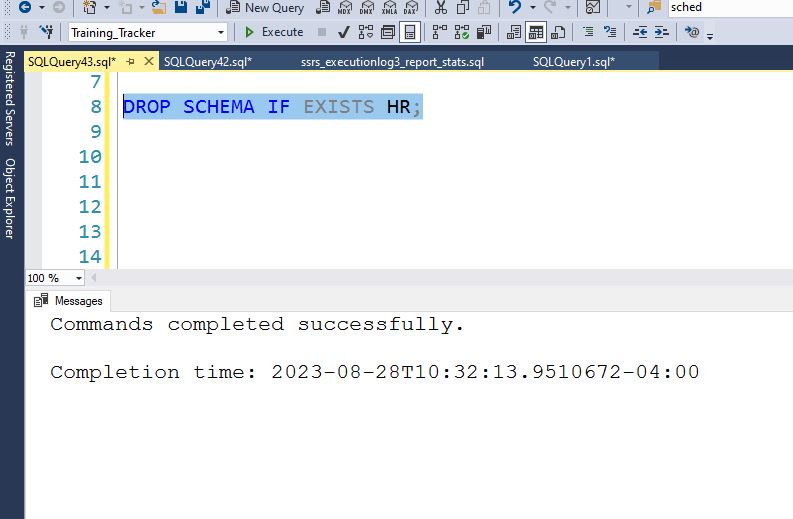
Now I can successfully drop the schema.

To read more about schemas, I encourage you to follow this link to the documentation. https://learn.microsoft.com/en-us/sql/t-sql/statements/create-schema-transact-sql?view=sql-server-ver16

Vertical Text Selection in SSMS

Often you have a list of values that you need to put into a query, but you only need certain columns of the data. I used to have to edit the data to get it in the format I needed, but now I can easily copy out the values I need using a single ALT key.

Continue reading Vertical Text Selection in SSMS

Copy all databases and logins to a new server using: Copy-DbaDatabase and Copy-DbaLogin

I had to setup a new server and I needed to copy all of the databases from the old server to it. This can take some time if you have many databases. Using Copy-DbaDatabase from dbatools makes this a simple process.

Read more: Copy all databases and logins to a new server using: Copy-DbaDatabase and Copy-DbaLogin

If you have not seen any of my other posts about dbatools, please follow this link to see how to set it up in your environment and to see the benefits of what it can do for you. https://jimsalasek.com/2021/10/05/dbatools-io-a-dba-timesaver-luxury/

Using just one command, you can copy all of the databases from one server to another. It can use different methods, but I am going to use the USELASTBACKUP method. From the documentation: “This uses the last full, diff and logs instead of performing backups. Note that the backups must exist in a location accessible by all destination servers, such a network share.”

Here is the command I used to complete this task. I had to supply my source and destination server names. Since these servers were on a different network, I had to specify credentials. If I was using Windows Authentication, I would not have needed to supply credentials. The command below pops up a box for you to type in your password.

Copy-DbaDatabase -Source SERVERNAME\INSTANCE -Destination SERVERNAME\INSTANCE -BackupRestore -UseLastBackup -Force -SourceSqlCredential sa -DestinationSqlCredential sa -AllDatabases

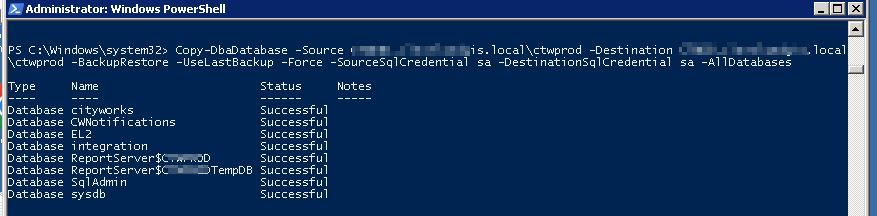
When it is all complete, your screen should look like below with all showing a Successful status.

Looking in SSMS, it shows all of the databases being on the new server.

Now another very useful command from dbatools, is copying over all of the usernames/passwords from the old server to the new server. This is also a one line command. Using Copy-DbaLogin, you do not need to worry about orphan logins which can happen when restoring databases onto a new server. From the documentation: “SQL Server 2005 & newer: Migrates logins with SIDs, passwords, defaultdb, server roles & securables, database permissions & securables, login attributes (enforce password policy, expiration, etc.)”

Copy-DbaLogin -Source SERVERNAME\INSTANCE -Destination SERVERNAME\INSTANCE -SourceSqlCredential sa -DestinationSqlCredential sa

This will skip any user that already exists on the server.

Using dbatools and the commands Copy-DbaDatabase and Copy_DbaLogin migrating to new servers is a breeze. To read more about these commands please follow the links below. https://docs.dbatools.io/Copy-DbaDatabase.html

https://docs.dbatools.io/Copy-DbaLogin.html

How to hide Report Service jobs in SSMS

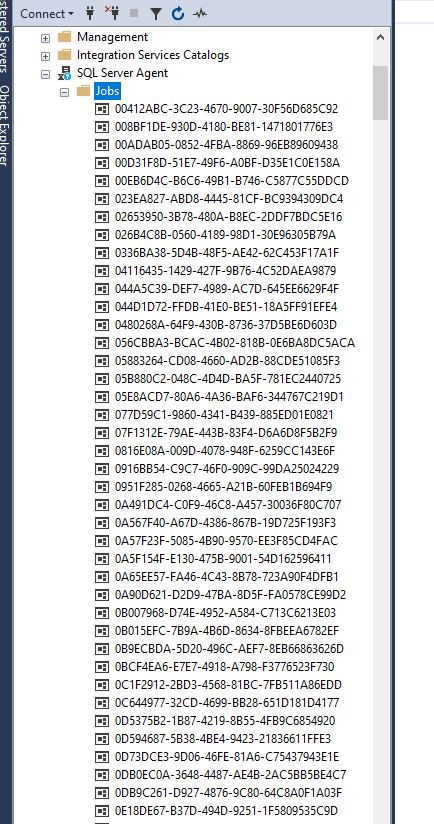
When you create subscriptions for your SSRS reports, it creates jobs in the SQL Server Agent with GUID’s when viewed in SSMS. This can make finding proper jobs more difficult if you have to scroll through hundreds or thousands of SSRS reports.

Read more: How to hide Report Service jobs in SSMS

On my server I have over 500 report subscriptions along with other database jobs. How do I hide all of these? Keep reading to find out!

We will need to modify a system supplied stored procedure. You do this at your own risk. I do not accept responsibility if there are problems on your system after making this change. That said, I have been doing this for over 10 years without any problems.

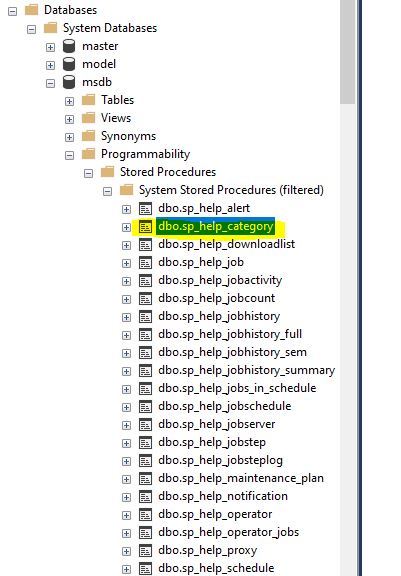
Open up the MSDB database and go to Programmability and open up the dbo.sp_help_category stored procedure. Right click and choose modify.

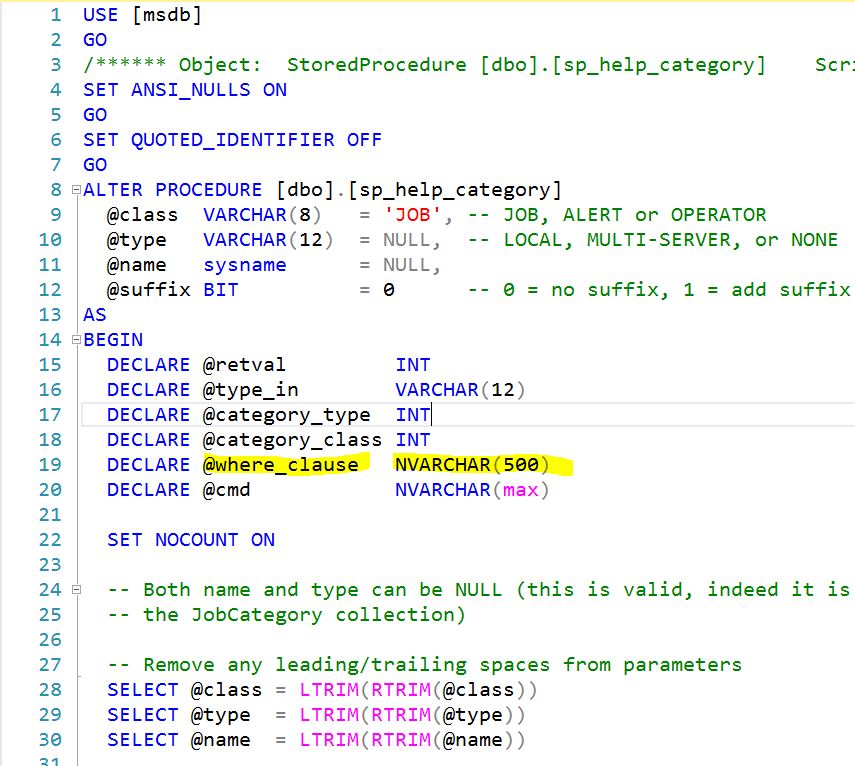
We need to make two changes to this procedure. First, we need to find the @where_clause variable. Mine is on line #19 below.

We need to change the 500 to MAX as seen below.

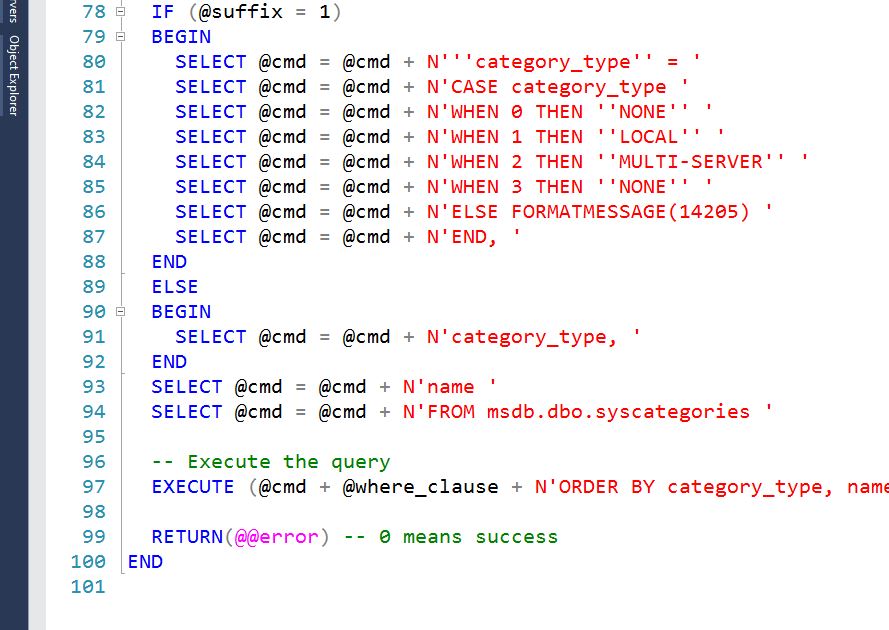
Now we need to go to the bottom of the stored procedure and look for the final execute. On mine, it was line #97.

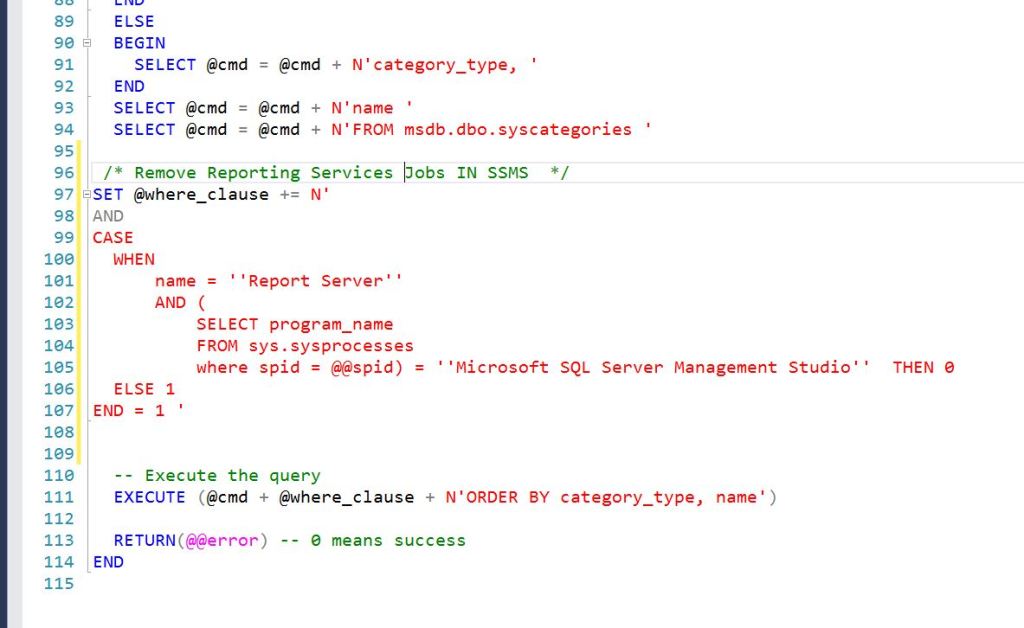
We will need to put this T-SQL code in front of the final execute and then execute the stored procedure to save it to the database.

-- Hide Reporting Services Jobs IN SSMS
SET @where_clause += N'
AND
CASE
WHEN
name = ''Report Server''
AND (
SELECT program_name
FROM sys.sysprocesses
where spid = @@spid) = ''Microsoft SQL Server Management Studio'' THEN 0
ELSE 1
END = 1 '

Before:

After:

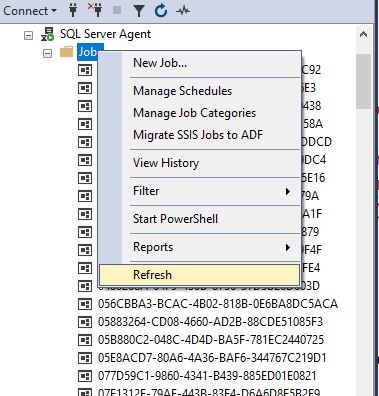
Now we can refresh the jobs.

After refreshing, all of the GUID jobs are no longer displaying. If you are still seeing the GUID jobs, make sure you executed the stored procedure to save it to the database.

One caveat: sometimes after patching, the GUID SSRS reports will reappear. Just bookmark this page and follow these steps again to fix.

To read more about sp_help_category, follow this link: https://learn.microsoft.com/en-us/sql/relational-databases/system-stored-procedures/sp-help-category-transact-sql?view=sql-server-ver16

TSQL – Easy way to find rows that do not exist in another table using the EXCEPT operator

There are times you have two tables that look the same and seem to have the same rows in each. Using the EXCEPT operator, you can find any rows that do not exist in either table.

Continue reading TSQL – Easy way to find rows that do not exist in another table using the EXCEPT operator