Copy SQL Server tables between servers easily with dbatools.

Often you need to copy tables between Sql Server database servers. In your environment, you cannot use or setup linked servers. How do you accomplish this without restoring the entire database on the destination server? Read along to see an easy way.

Read more: Copy SQL Server tables between servers easily with dbatools.

A scenario you will often find as a DBA, is to copy over table data to a different environment. The users do not want the entire database, but just the one table.

Using dbatools, this is very simple. To read more about setting up dbatools, please refer to my earlier blog posts.

Here is my current TEST database. It does not have any tables at this time.

After having dbatools installed, this simple command will copy a table from one database server to another.

Copy-DbaDbTableData -sqlinstance SOURCEINSTANCE -database warehouse -table dbo.aging -destination DESTINATIONINSTANCE -destinationdatabase Test -autocreate

The parameters you will need to change are easy enough:

SOURCEINSTANCE, TABLE, DESTINATIONINSTANCE, and DESTINATIONDATABASE. If you add -Autocreate, it will create the table automatically for you.

(why is this screenshot so small? You will need to trust me)

This is it running and showing progress.

This is the results of the command finishing. It shows (really it does), the table name, servers, number of rows transferred and time it took to complete.

If we look in the test database, you can see that the table has been copied over.

There are always multiple ways to accomplish tasks in Sql Server. Using dbatools is a huge time saver.

Master Filtering in SSMS: Quick Database Object Access

Are you tired of scrolling through all the tables, stored procedures and views to find the correct one? Sometimes you need to modify a stored procedure, and it takes a couple of minutes just to find it in the tree. Is there a way I can filter objects in SSMS? Yes! Read on to see how to do it.

Read more: Master Filtering in SSMS: Quick Database Object Access

SQL Server Management Studio (SSMS) will let us filter objects like tables, stored procedures and views. It really helps to get to objects quickly in case you
have a lot of objects in your database.

Here is how you can filter the objects. I am going to demonstrate on the stored procedures, but this works for tables and views also.

Go to the appropriate database and drill down to stored procedures and then Right click. Choose Filter->Filter Settings.

In this example I do not want to see any procedures that are in the ORACLE schema. I change the Operator to Does Not Contain and put the schema I do not want to show up.

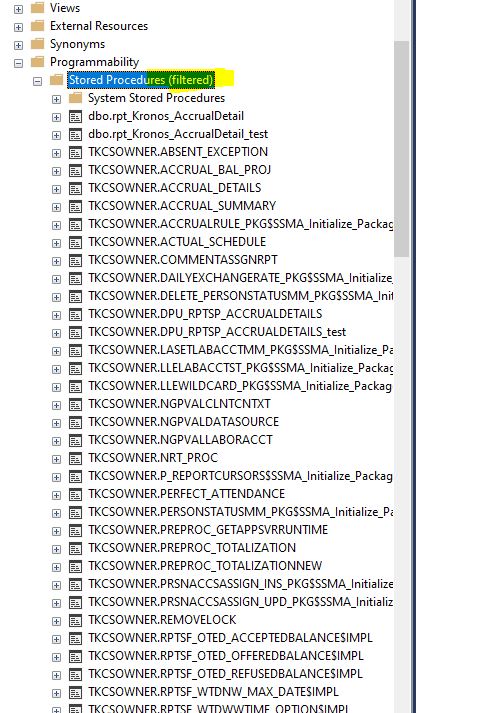
After pressing OK, the browser it does not show the Oracle schema anymore. You can also see that the Stored Procedures are filtered by the word Filtered showing up next to them.

To remove the filter, just right click Stored Procedures select Filter -> Remove Filter.

Now all stored procedures show up in the listing again. You can see that the Filtered keyword is not showing up next to the Stored Procedures listing.

Now we are going to filter on certain tables. Right click on Tables and choose Filter Settings. This time we will put a value for Name “contains” and we will put in ACCR so we only see tables related to accruals.

Now we only see tables that contain the letters ACCR. Also notice that the Tables option shows they are Filtered.

If you are a programmer and only responsible for certain tables or procedures, using filters can really clean up your work environment.